
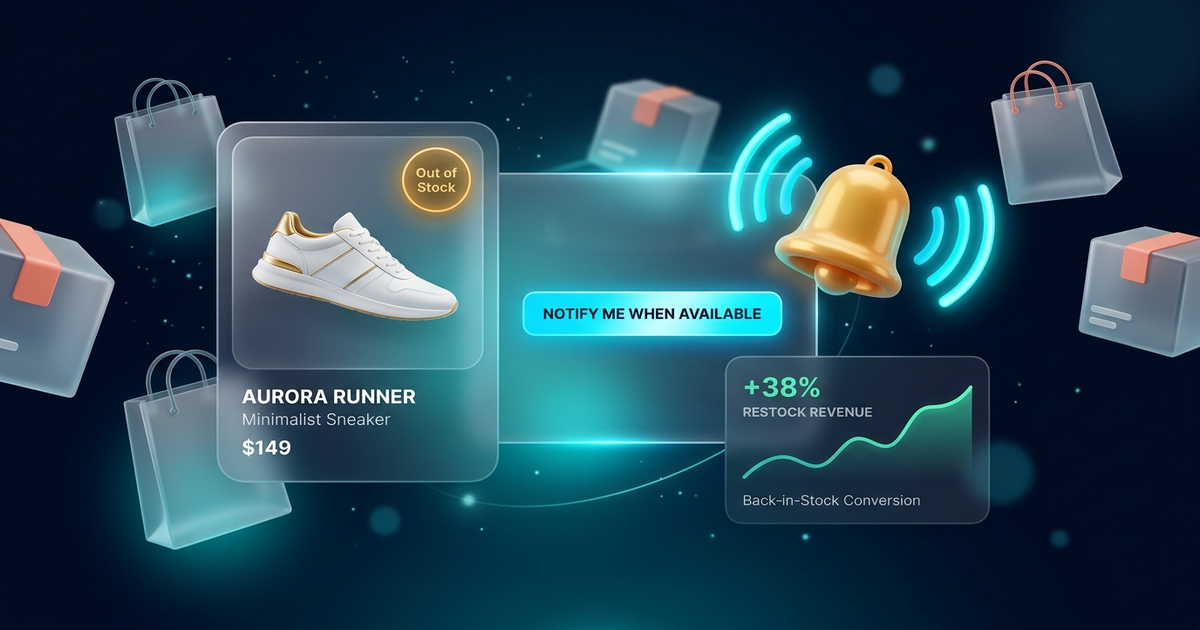
Every online store owner knows the excitement of a product selling out. It validates your marketing, clears shelf space, and boosts revenue. But here is the harsh reality that analytics often hide: an unoptimized “Out of Stock” page is one of the biggest revenue leaks in your WooCommerce store.
Studies consistently show that over 70% of shoppers who land on an out-of-stock product page bounce immediately. Worse, the majority head straight to a competitor or search engine to find an alternative. Instead of capturing a high-intent buyer who is ready to purchase, default WooCommerce settings present them with a dead end.
In this guide, we will break down the mechanics of a high-converting back-in-stock strategy, explain how automated waitlists transform lost traffic into predictable repeat sales, and show you how to set up intelligent waitlist alerts in minutes using WPWing Smart Wishlist & Product Waitlist for WooCommerce.
1. The True Cost of “Out of Stock” in WooCommerce
When an item sells out, store owners often celebrate. However, look closer at the numbers and you will find three hidden costs draining your bottom line:
- Wasted Acquisition Ad Spend: If you run Google Shopping, Meta ads, or influencer campaigns, you paid for that click. When a paid visitor hits a sold-out product without an opt-in, that ad dollar is lost permanently.
- Direct Competitor Handover: A customer searching for a specific item has active buying intent. If you cannot fulfill it or capture their email, they will buy from the next shop in search results.
- Damaged Brand Perception: Repeatedly encountering dead-end product pages frustrates shoppers and leads them to believe your store is poorly managed or unreliable.
2. What Is a Back-in-Stock Strategy?
A back-in-stock strategy replaces standard “Out of Stock” notifications with an automated, customer-friendly lead capture mechanism. Instead of seeing a greyed-out button, shoppers see an intuitive opt-in field: “Notify me when this product is back in stock.”
When new inventory arrives and the product stock count is updated in WooCommerce, the system automatically dispatches personalized notification emails to everyone waiting in line. The result? Immediate sales surges on the very day you replenish inventory.
Traditional Dead End
Shopper lands on product → Sees “Out of stock” → Bounces to competitor → Zero revenue, lost ad spend.
Automated Waitlist Flow
Shopper lands on product → Subscribes to waitlist → Receives instant restock email → Completes purchase.
3. The Hidden Benefit: Zero-Risk Inventory Demand Forecasting
One of the biggest headaches in retail eCommerce is inventory planning. Order too few units, and you lose revenue; order too many, and your cash flow is tied up in stagnant warehouse stock.
Automated waitlists provide empirical, risk-free demand forecasting. By reviewing the number of active waitlist subscribers per product or variation in your WooCommerce dashboard, you know the exact demand before committing budget to manufacturer reorders.
4. Why You Need Wishlists and Waitlists Together (The 2-in-1 Advantage)
Most eCommerce platforms treat Wishlists and Waitlists as completely separate tools. Typically, a store owner is forced to install:
- A heavy wishlist plugin (such as YITH or TI Wishlist), which loads bulky JavaScript scripts across the entire frontend.
- A standalone waitlist plugin, adding another background process, separate database tables, and another monthly or yearly fee.
This fragmentation hurts site speed and degrades Core Web Vitals. That is why we engineered WPWing Smart Wishlist & Product Waitlist for WooCommerce as an integrated 2-in-1 solution:
- Unified Codebase: One lightweight plugin handles both shopper wishlists (save for later) and back-in-stock waitlists (inventory recovery).
- Zero jQuery Bloat: Built natively with modern JavaScript, reducing page weight and preventing checkout conflicts.
- Cross-Feature Synergy: If an item on a customer’s wishlist goes out of stock, they can join the waitlist with a single click without re-entering their email.
5. How to Set Up Automated Stock Waitlists in WooCommerce
Setting up back-in-stock notifications on your WooCommerce store takes less than five minutes:
Step 1: Install and Activate the Plugin
- In your WordPress Admin, go to Plugins → Add New.
- Search for “WPWing Smart Wishlist”.
- Click Install Now and then Activate.
Step 2: Enable the Product Waitlist Module
Navigate to WPWing → Settings → Product Waitlist:
- Toggle Enable Product Waitlist to active.
- Choose whether guest visitors can subscribe by entering an email address or if user registration is required.
- Select button placement: display directly beneath the stock status or adjacent to the out-of-stock badge.
Step 3: Customize Email Notifications & Branding
Under the notification settings, configure your automated transactional emails:
- Subscription Confirmation: Reassures shoppers that their notification request has been logged.
- Back in Stock Alert: Includes product thumbnail, direct purchase link, and customized copy creating subtle urgency (e.g., “Hurry, quantities are limited!”).
6. 4 Best Practices for High-Converting Restock Emails
To maximize the conversion rate of your automated back-in-stock emails, apply these four proven tactics:
- Instant Delivery: Trigger emails the moment stock is updated. Waiting even six hours reduces click-through rates by up to 40%.
- Single-Click Buy Links: Ensure the CTA button in the restock email takes the customer directly to the product page with the item pre-selected or added to cart.
- Clear Scarcity: Remind shoppers that other customers on the waitlist have also received the alert, encouraging prompt checkout.
- Mobile Optimization: Over 65% of restock alerts are opened on smartphones. Keep layout clean and buttons prominent.
7. Frequently Asked Questions (FAQ)
Can guest users join the waitlist without creating an account?
Yes. WPWing allows guest shoppers to subscribe simply by entering their email address. When the item returns to stock, they receive the notification automatically without needing an account login.
Does the waitlist work with variable products (size, color)?
Yes. The waitlist tracks individual product variations. If a Large shirt is sold out while Medium is in stock, the waitlist form dynamically appears only when the user selects the out-of-stock variation.
Will adding a waitlist plugin slow down my store?
Not with WPWing. Unlike legacy plugins that inject heavy external scripts on every page, WPWing is built with modern, vanilla JavaScript and loads assets conditionally only where needed.
Turn Sold-Out Traffic into Loyal Customers
Out-of-stock items do not have to mean lost revenue. By setting up an automated back-in-stock waitlist, you protect ad spend, forecast demand accurately, and build strong relationships with buyers who love your products.
Ready to recover lost sales? Download WPWing Smart Wishlist & Product Waitlist for WooCommerce free from WordPress.org, or check out the official plugin landing page to get started today.